Organize / On your device
Reorder pages
Drag real thumbnails, or move pages with buttons. Free to use. Your files stay in your browser.
Files stay in this tab. Closing or refreshing clears your work. Save the result before leaving.
Bring your pages here.
Or drop them here. PDFs, or JPG and PNG for the image tool.
Choose a file to see its pages.
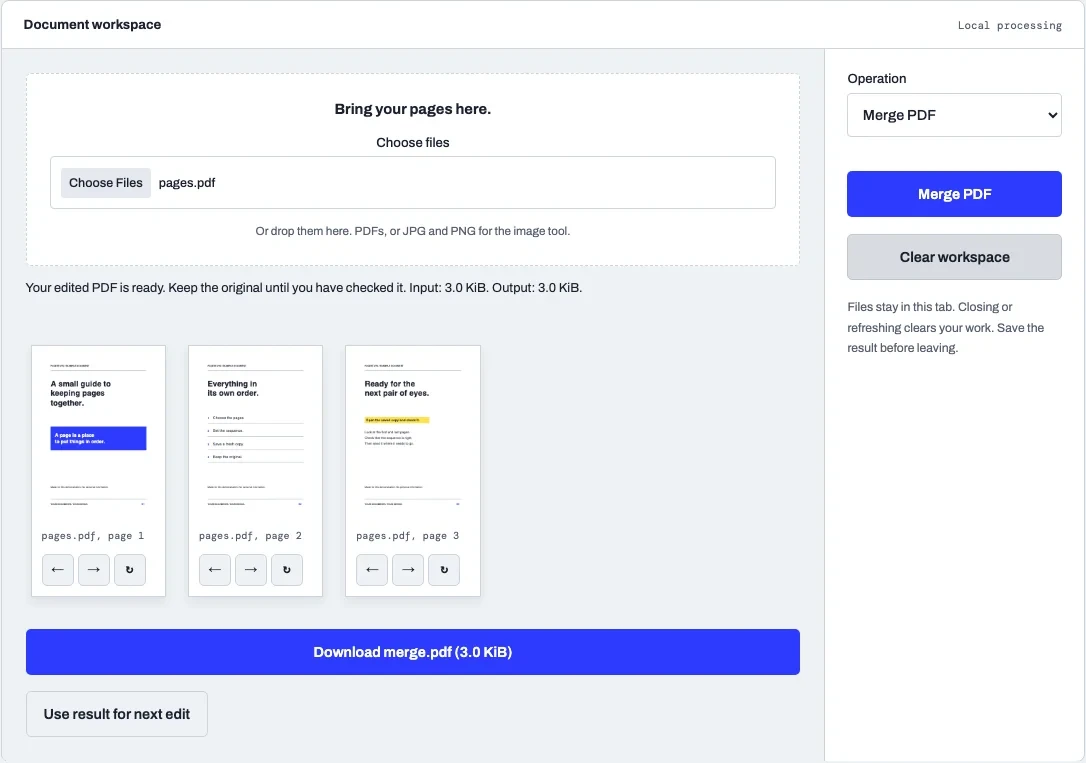
How to use this tool
- Choose the source file using the file picker, or drop it into the document tray.
- Review the available controls. Drag thumbnails to rearrange them, or use the move buttons. The rotation button changes the saved orientation when you make the PDF.
- Make the result, then use its download link. Open the saved copy to inspect the pages.
What to expect
Keep the original. Page operations may not preserve document-level bookmarks, interactive forms, links, accessibility tags, or digital signatures. Check the saved result before sharing.
Each operation creates a downloadable output. Your source file on disk is not overwritten by the tool. The original remains useful if you need to change the settings or compare the result later. Browser memory is temporary, so refreshing or closing this page clears the workspace.
Use the output for the next edit when the result is a single PDF. This lets you combine a useful sequence, such as assembling documents and then adding page numbers, without choosing the file again.
Good to know
Does my file leave this device?
No. Document contents and file names are processed in your browser tab. The website and self-hosted libraries load from Pagestays. No analytics or file-upload endpoint is used.
How large can my file be?
There is no universal safe browser size. This tool caps a selection at 150 MiB as a product guardrail, while available memory and page complexity can impose a lower limit. Start with a smaller batch on a phone.
What should I check before sending the result?
Keep the original. Page operations may not preserve document-level bookmarks, interactive forms, links, accessibility tags, or digital signatures. Check the saved result before sharing.
Can I keep editing after this step?
Yes. Select Use result for next edit after a single PDF output. Choose another operation, then save the next result. Image and text exports cannot become a PDF editing input automatically.