A useful merged PDF has the intended pages in the intended order and preserves the features the recipient needs. Page count alone is not a complete merge check.
The distinction that matters
Start by defining the packet: cover, main document, supporting material, and any required appendices. Inspect the source files before assembly so that a duplicate cover or missing final page is not mistaken for a software error later. Filenames can help identify inputs, but the thumbnail sequence is the actual output order in Pagestays.
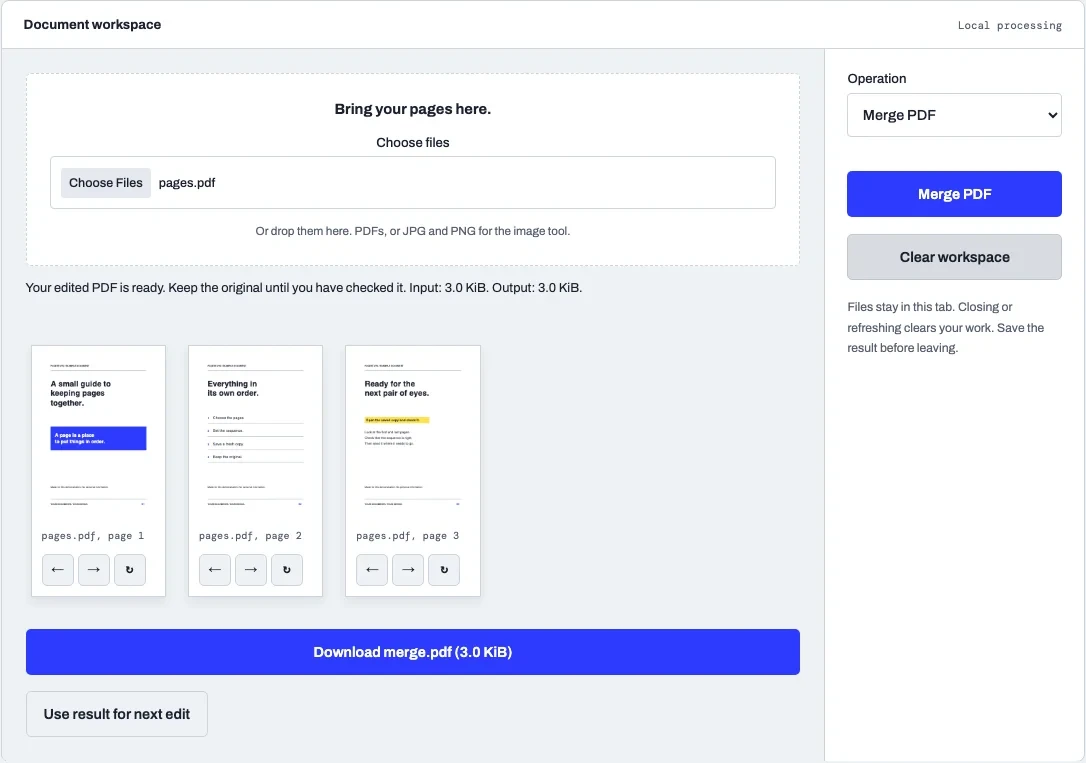
Use drag ordering or the keyboard-accessible move buttons to arrange pages. Rotation controls adjust the orientation of selected page appearances. Review the first and last page of each source boundary, where omissions and duplications are easiest to miss. Printed page numbers may no longer match the combined sequence, so decide whether the recipient needs original numbering or a new continuous series.
Document-level features need separate attention. A merge can affect bookmarks, form organization, tags, and signatures even when the pages look correct. Pagestays copies pages into a new PDF and warns that these features are not guaranteed to carry over. Keep signed originals and specialized forms when their original structure is important.
After saving, reopen the merged file and check the actual download. If you then add page numbers or a watermark, save an intermediate merged copy first. That makes it easier to recover when a later annotation overlaps content or when a recipient changes the requested packet order.
| Situation | What it means | Useful next step |
|---|---|---|
| Page inventory | Expected sources and page count | Detect omissions and duplicates |
| Sequence review | Thumbnails and saved output | Check each source boundary |
| Feature review | Links, forms, tags, signatures | Retain originals when structure matters |
A worked example
In an illustrative packet, a 2-page cover letter, a 3-page report, and a 1-page attachment should produce 2 + 3 + 1 = 6 pages before any deletion. Arrange the attachment after the report, then inspect the transitions at the end of the letter and report. If the output has 6 pages but repeats the report's first page and omits its last page, the arithmetic passes while the document still fails the requirement.
Check more than the visible page
A PDF can carry a visual page and a separate structure for interaction and interpretation. Links, bookmarks, form widgets, tags, and document metadata do not all live in the same place as the text and images you see. An operation that copies or redraws page content can produce a convincing picture while leaving some of those other features behind.
Decide which features are part of the acceptance test. If readers need to follow a contents page, try its links. If a form must remain editable, change a value in a copy and save it. If assistive technology is part of the workflow, inspect reading order and structure rather than relying on visual appearance. A successful visual comparison does not establish accessibility conformance.
Page assembly deserves particular care because document-level information can depend on the original sequence. A bookmark can target an old page location, a printed cross-reference can become misleading, and a tagged reading order may no longer describe the merged packet. Keep a source document available and test the elements that readers actually use.
When a conversion intentionally removes interactivity, describe that choice to the recipient. An image export is useful for a slide or a visual reference, but it is a poor replacement for a form that needs further editing. The right output is defined by its purpose. Do not preserve a feature merely for its own sake, but do not discard one without recognizing what the next person needs to do.
Keep a source and a delivery copy
The original and the deliverable have different jobs. The original is a reference you can return to when a setting turns out to be wrong. The deliverable is the copy prepared for a particular recipient, format, or size constraint. Giving them different names prevents a successful-looking conversion from becoming an accidental overwrite of your only useful source.
Start by opening the original and identifying the features that matter. A plain scan may need only readable pixels, while an application form may need editable fields and a report may need working links. Write the required properties down before choosing a transformation. This makes the final inspection a comparison against a requirement rather than a general impression that the document looks fine.
After saving, close the preview of the edited result and open the downloaded file. That small separation matters: a tool can display an intermediate state that is not identical to the file it exported. Check the filename and destination so you know which copy you are inspecting. If the result is intended for someone else, use the viewer or delivery channel they are likely to use when practical.
Keep useful intermediate copies when a job involves several operations. If a merge is correct but a later image conversion is too soft, restart from the merged PDF rather than reconstructing the whole sequence. Do not treat a smaller byte count, a completed progress bar, or a successful download as proof that all document features survived.
Choose the operation that changes the right thing
A document problem is easier to solve when it is stated as a required change rather than a tool name. A file can be too large because it contains unnecessary pages, oversized images, embedded material, or inefficient encoding. A page can look wrong because of its rotation, crop boundary, physical dimensions, or print scaling. Each cause points to a different operation.
Inspect the input before trying several transformations. Select text to see whether a text layer exists. Look at page properties when geometry matters. Open the form controls when the recipient expects structured values. This short diagnosis avoids an unnecessary image conversion that might make the page look acceptable while removing features you still need.
Apply the least disruptive operation that meets the requirement. If only the order is wrong, rearrange pages rather than rendering the whole document into images. If only an appendix is needed, extract it rather than compressing an entire report. If a scanned image is the source of excessive size, test an image-focused change and inspect the detail afterward.
When chaining tools, treat each stage as a new input with its own properties. In Pagestays, select Use result for next edit to make a PDF output the working document. Keep an intermediate download when it represents useful progress. If a later step fails, that checkpoint makes it easier to isolate the problem and restart without repeating successful work.
Keep accessibility in the acceptance criteria
A readable-looking PDF can still be difficult to use with assistive technology. Meaningful headings, reading order, language, table structure, and text alternatives help a reader understand relationships that visual layout alone cannot express. Tags are useful structural information, but merely detecting a tag tree is not a complete accessibility review.
Start in the source document when possible. Proper headings, sensible table construction, descriptive links, and useful alternative text are easier to maintain before export than to reconstruct from a finished visual page. Export with the application's appropriate structure settings, then inspect the resulting PDF. A print-to-PDF path can produce a different artifact from a structured export.
After editing, check the features the workflow depends on. Merging or extracting pages can affect structure and navigation. Rasterizing a page removes the underlying text and relationships unless a separate process reconstructs them. OCR may recover characters, but it does not automatically recover a correct heading hierarchy, a complex table, or a meaningful image description.
Use both automated checks and human review for a consequential accessibility requirement. A tool can detect some missing properties while failing to judge whether an alternative description is useful or a reading sequence makes sense. Pagestays is a utility collection, not an accessibility remediation or certification service. If accessibility is required, preserve the original structured source and validate the final deliverable with the appropriate process.
Put the distinction to work
Open the related local tool when its supported operation matches your task. Read the limits beside the controls, make a separate output, and check it against the requirements described above. For a sequence of PDF operations, the workspace lets you carry a PDF result into the next edit.
Good to know
Can I merge different page sizes?
Yes. Source page dimensions are preserved in page assembly. Inspect how mixed sizes behave in the receiving viewer or print path.
Will signed pages remain digitally signed?
Do not assume the new assembled document preserves the original cryptographic validation. Keep the signed originals.
Can I add numbers after merging?
Yes. Use the result as the working document, choose Page numbers, and inspect the footer position in the saved result.